
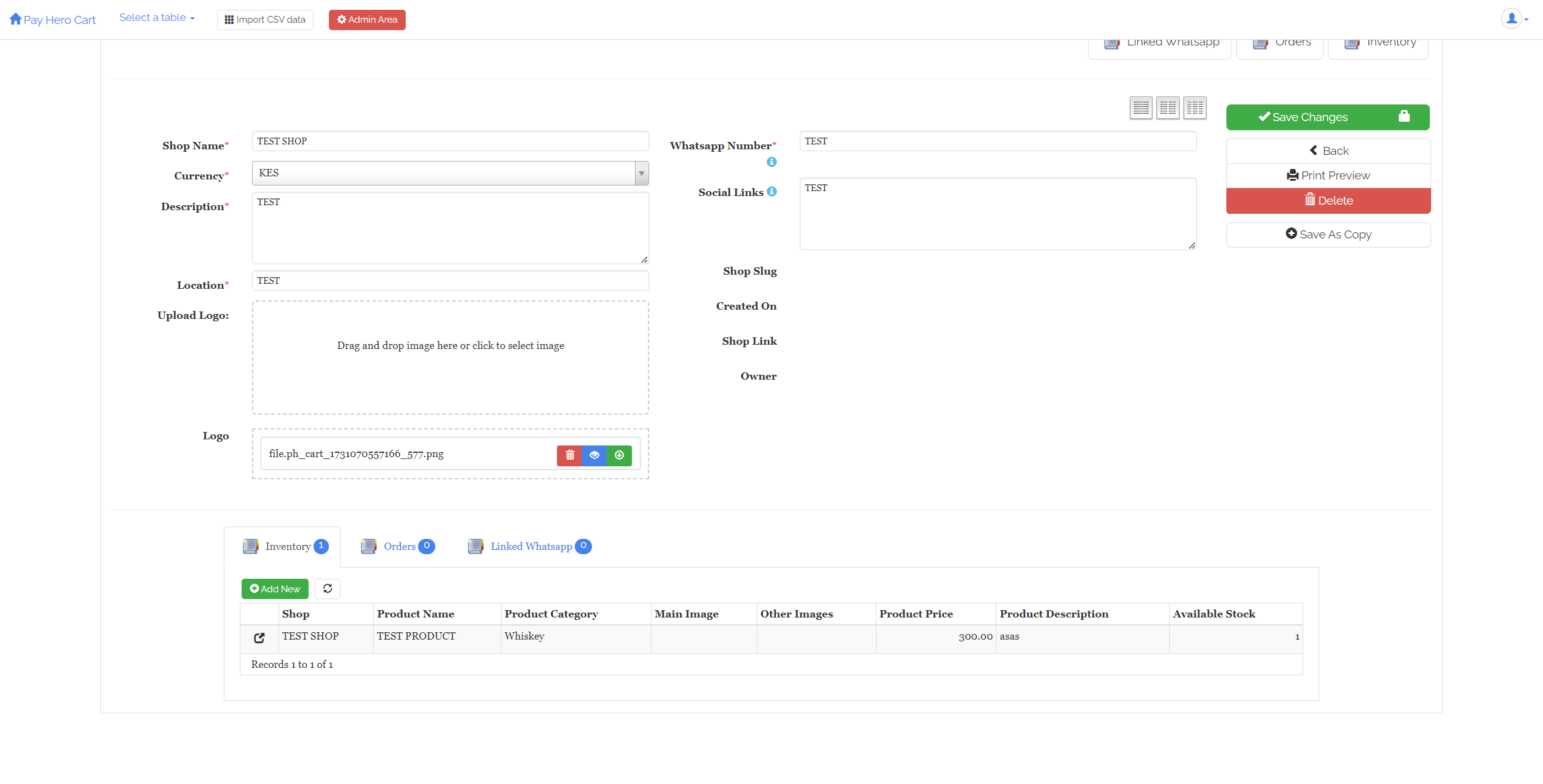

The Drop Zone Manager for AppGini is a powerful, easy-to-use add-on designed to integrate drag-and-drop file uploading capabilities into your AppGini project. With this tool, you can seamlessly enhance the functionality of any table in your application by enabling users to quickly and intuitively upload files. The Drop Zone Manager is perfect for projects that require efficient file management and provides a smooth, interactive user experience directly within your AppGini interface.
Key Features
- Drag-and-Drop File Uploading: Simplifies the user experience by allowing files to be uploaded through a quick drag-and-drop interface.
- Multi-Table Support: Easily integrate Drop Zone Manager into multiple tables within your AppGini project.
- Customizable Settings: Modify settings on a per-table basis to suit different file upload needs and customize it further to match your project’s layout and styling.
- Efficient File Management: Provides an organized structure for handling multiple file uploads, streamlining backend management.
Installation Instructions
Follow these steps to add Drop Zone Manager to your AppGini project:
#HOW TO INSTALL THE DROP ZONE MANAGER FOR APPGINI
-
Extract the ZIP File:
- Download and unzip the Drop Zone Manager file.
- Place the extracted files into your AppGini project folder.
-
Copy the Main File:
- Locate the
dropzone_manager_for_appgini.phpfile from the extracted files. - Copy it into the
hooksfolder inside your AppGini project folder.
- Locate the
-
Edit Header Extras Code:
- Open the
header_extras_code.phpfile located in your AppGini project folder. - Copy all its contents, and then open the
hooks/header_extras.phpfile. - Paste the copied content into
hooks/header_extras.phpto ensure proper functionality.
- Open the
-
Modify the Table JavaScript File:
- Open
table-dv.jslocated in your AppGini project folder. - Copy its contents, then navigate to the
hooksfolder and locate the{table}-dv.jsfile for the specific table where you want to enable the Drop Zone Manager. This should be an existing file in the hooks folder, such asclients-dv.jsfor a "Clients" table. - Paste the contents into
{table}-dv.jsand modify as needed for your table’s requirements. If you need to use the Drop Zone Manager on other tables, repeat this step for each table.
- Open
Table DV Notes
//Initalize our dropzone manager new DropzoneManager( "local_file-manager.php", //the file manager service: Do not change "table_name",//Enter table name "field_name", //Enter table column name: MUST be a textarea "Upload Files:", //Drop zone label "image/*,.zip,.pdf,.csv,.xlsx,.xls,.doc,.docx", //Allowed file types "Drag and drop files here or click to select files", //Drop zone message "Remove", //Remove button label 20, //Max file size in MB true, //Add remove links true, //clickable 10, //Max number of files "file" //File prefix );
Parameter Breakdown
- File Manager Service:
"local_file-manager.php"— Connects the Drop Zone Manager to the backend service for file processing. Do not change this parameter. - Table Name:
"table_name"— The database table name where file uploads are associated. - Field Name:
"field_name"— A column in the specified table to store file information. It must be atextareafield in AppGini. - Drop Zone Label:
"Upload Files:"— Customizable label displayed above the file drop area. - Allowed File Types:
"image/*,.zip,.pdf,.csv,.xlsx,.xls,.doc,.docx"— Restricts uploads to specific file types, improving file validation and security. - Drop Zone Message:
"Drag and drop files here or click to select files"— Instructional message displayed to the user within the drop zone. - Remove Button Label:
"Remove"— Text displayed on the button for removing a file. - Max File Size:
20— The maximum file size limit, set in megabytes (MB). - Add Remove Links:
true— Controls the display of remove links. Iftrue, users can delete uploaded files. - Clickable:
true— Allows users to click on the drop zone to open the file selection dialog. - Max Number of Files:
10— Limits the number of files that can be uploaded per drop zone instance. - File Prefix:
"file"— A prefix for each uploaded file, which can be helpful for managing or identifying files on the server.
This configuration makes it easy to adjust each Drop Zone instance based on table-specific requirements, ensuring that files are managed efficiently and securely within the AppGini environment.